
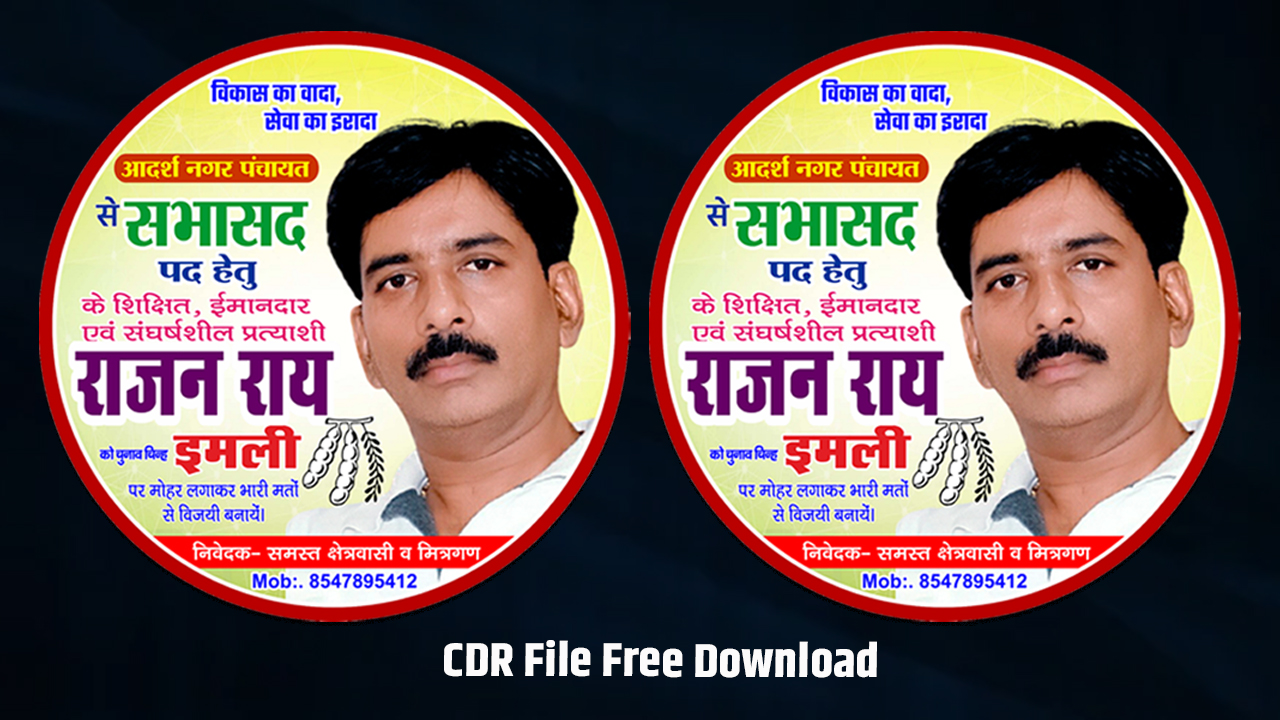
Circle Sticker Design Tutorial
Designing a professional circle sticker in CorelDRAW requires a blend of technical precision and creative flair. Since stickers are often small, the key is to balance high-impact visuals with “print-ready” settings to ensure your physical product looks as good as it does on your screen.
Here is a comprehensive guide to mastering the circle sticker workflow.
1. Document Setup and Guidelines
Before you draw a single line, you must set the stage for a successful print.
Color Mode: Always set your primary color mode to CMYK. RGB colors often look neon on screens but turn dull when printed.
Dimensions: Create your workspace slightly larger than the sticker. For a standard 3-inch sticker, set your page to 3.5″ x 3.5″.
Bleed Area: This is the most critical step. Create a circle that is 0.125 inches (3mm) larger than your intended cut size. This ensures that if the cutting machine shifts slightly, you won’t have an awkward white sliver at the edge.
2. Creating the Perfect Foundation
Use the Ellipse Tool (F7) to create your base. Hold the Ctrl key while dragging to ensure a perfect mathematical circle.
The Three-Circle Rule
To keep your design organized, I recommend creating three concentric circles on different layers:
The Cut Line: The actual edge of the sticker (usually represented by a “Hairline” thickness).
The Bleed: A larger circle where your background colors should extend.
The Safe Zone: A smaller internal circle (about 0.125″ inside the cut line) where all your important text and logos should stay.
3. Typography and “Text on a Path”
The hallmark of a great circle sticker is text that follows the curve. In CorelDRAW, this is incredibly intuitive.
The Technique: Write your text using the Text Tool (F8). With the text selected, go to Text > Fit Text to Path, then click the edge of your circle.
Refining: Use the Property Bar to adjust the distance from the path or to mirror the text if you want it running along the bottom curve (reading left-to-right).
Readability: Avoid overly thin scripts. Stickers are often viewed from a distance, so bold, sans-serif fonts usually perform best.
4. Visual Elements and Effects
Stickers are a “less is more” medium.
Vector vs. Raster: Whenever possible, use vector shapes. They stay crisp regardless of how much you scale them. If you use a photo, ensure it is at least 300 DPI.
The “Pop” Factor: Use the Drop Shadow tool or the Contour tool to create a white “sticker-style” border around internal elements. This helps the central logo stand out against a busy background.
PowerClip: If you have a complex pattern or image, use the PowerClip (Object > PowerClip > Place Inside Frame) feature to neatly mask it into your circle.
5. Exporting for the Printer
Once your design is finished, you need to “bake” it so it doesn’t change when opened on another computer.
Convert to Curves: Select all text and press Ctrl + Q. This turns text into shapes so the printer doesn’t need to own your specific fonts.
Outline to Object: If you have thick borders, go to Object > Convert Outline to Object. This prevents the border from scaling incorrectly.
File Format: Export as a high-quality PDF (PDF/X-1a) or a TIFF. Ensure the “Bleed Limit” is checked in the export settings.
Pro Tip: If you’re sending this to a professional die-cut printer, create a separate layer named “Cut” and set your cut line to a 100% Magenta hairline. Most print shops use this as the signal for their cutting blades.
दोस्तों मुझे उम्मीद है आपको हमारी यह पोस्ट पसंद आई होगी
अगर हाँ तो हमारे ब्लॉग को बुकमार्क जरुर करें, और नोटिफिकेशन बेल को ऑन कर लीजिये जिससे जब भी हम न्यू पोस्ट डालें तो आपको उसका नोटिफिकेशन तुरंत मिल सके और उसका फायदा भी आपको मिल सके।
अस्वीकरण: यह डिजाईन खासतौर पर शैक्षणिक उद्देश्यों के लिए दिया गया है, यह बिक्री के लिए बिलकुल नहीं है।

Rohit Raj Gautam
मैं रोहित राज गौतम एक ग्राफिक डिजाइनर एक्सपर्ट हूं, मैं करीब 6 साल का प्रिंटिंग और डिजाइनिंग का अनुभव रखता हूँ। साथ ही, यूट्यूब चैनल पर प्रिंटिंग और डिजाइनिंग सिखाकर लोगों की हेल्प करता हूं। अगर आप अच्छे से प्रिंटिंग और डिजाइनिंग का काम सीख लेते हैं तो आप महीने का लाखो रूपये कमा सकते हैं घर बैठे। अधिक जानकारी के लिए है हमें फॉलो करें और प्रिंटिंग और डिजाइनिंग क्षेत्र में रूचि रखने वालों दोस्तों को शेयर करें।